
API Access & Connect Claude
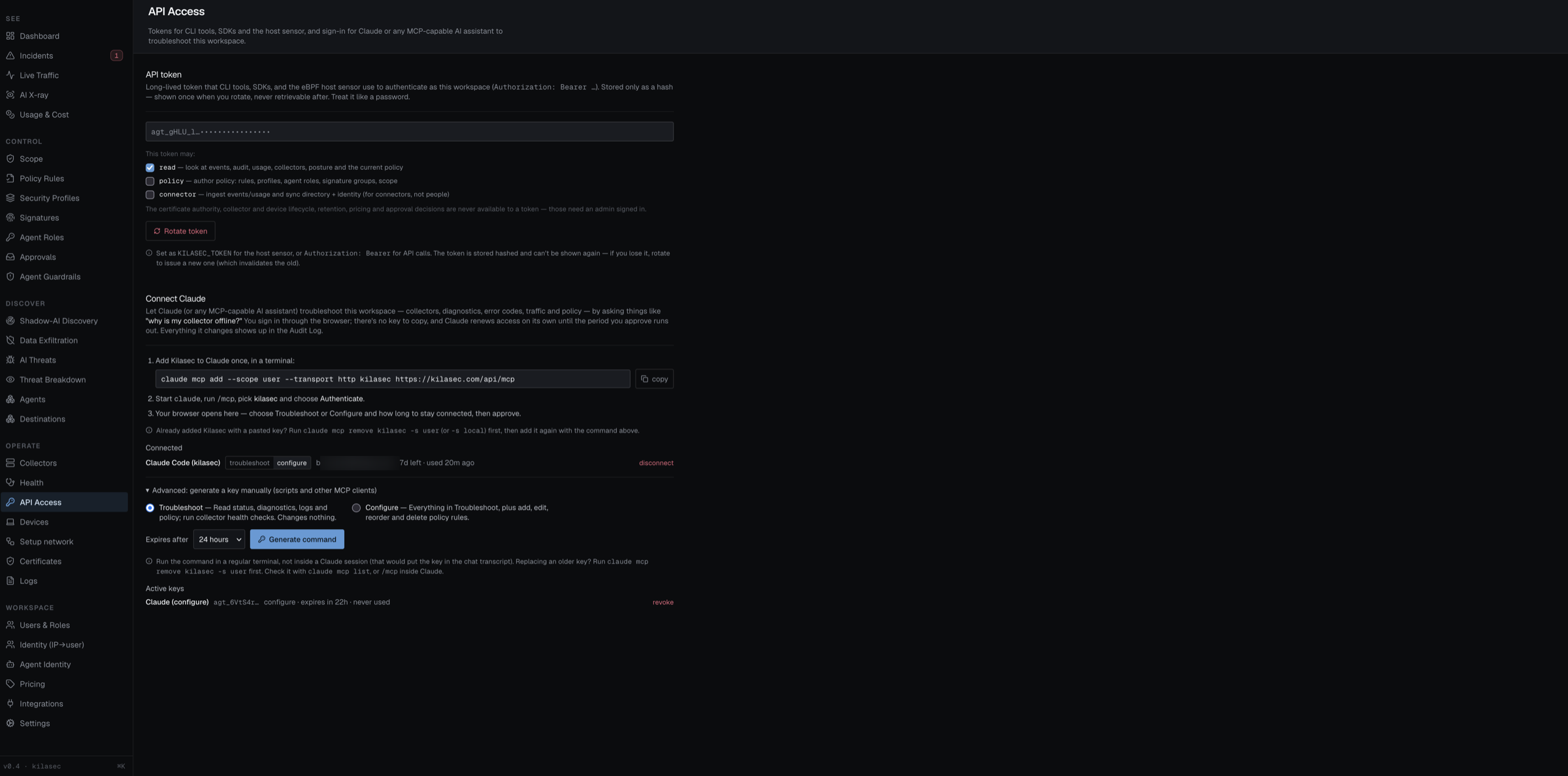
The API Access page holds the workspace API token for scripts and integrations, and lets Claude (or any MCP-capable AI assistant) troubleshoot your workspace through Kilasec's MCP server.
Where you do this: Cloud dashboard — kilasec.com/app/ → Operate → API Access. Requires the tenant_admin role. (The API token used to live under Settings → Access & SSO; that page now keeps only sessions and SSO.)
Connect Claude
Once connected, you can ask Claude things like "why is my collector offline?" or "why is my directory sync failing?" and it reads your collectors, diagnostics, error codes, traffic and policy to answer.
Add Kilasec to Claude once. Copy the command from the Connect Claude card and run it in a terminal (not inside a Claude chat):
shclaude mcp add --scope user --transport http kilasec https://kilasec.com/api/mcp--scope usermakes Kilasec available from any folder, and keeps it out of a repo's.mcp.json.Sign in. Start
claude, run/mcp, pick kilasec and choose Authenticate. Your browser opens the console.Approve. A workspace admin chooses the access level — Troubleshoot or Configure — and how long to stay connected (1 day, 7 days or 30 days), then clicks Approve. Only approve a request you just started from Claude on your own computer; otherwise click Deny.
Claude renews its access on its own until that period runs out, then asks you to sign in again. There is no key to copy or store.
Already added Kilasec with a pasted key? Remove it first with claude mcp remove kilasec -s user (or -s local), then add it again with the command above.
Access levels
| Level | What the assistant can do |
|---|---|
| Troubleshoot | Read status, diagnostics, logs and policy; run collector health checks. Changes nothing. |
| Configure | Everything in Troubleshoot, plus add, edit, reorder and delete policy rules and set the default action. |
Each connection under Connected has a live Troubleshoot / Configure toggle. A change applies to the assistant's very next call — same connection, no re-authentication — in both directions. Every change is recorded in the Audit Log. A Troubleshoot-level assistant is told that configure tools exist and how an admin can enable them.
Managing connections
The Connected list shows each assistant with who approved it, its level, time left, and when it was last used. Disconnect cuts it off immediately — its next call is rejected and it has to sign in again.
Everything an assistant does goes through the same API, permission checks and validation as the console. Changes are audited with the actor key:<name>, so you can tell an assistant's edit from a person's on Logs.
What the assistant can see
The MCP server exposes these tools (Configure adds the last five):
| Area | Tools |
|---|---|
| Plan & traffic | get_plan_and_limits, get_traffic_stats, search_traffic_log, search_change_log |
| Collectors & devices | list_collectors, get_collector_status, get_collector_diagnostics, get_last_health_check, run_collector_health_check, list_devices |
| Directory & User-ID | get_directory_sync, get_userid_status, search_directory_users, list_ip_identities, who_is |
| Support | explain_error_code, get_troubleshooting_hints, list_support_tickets |
| Policy (read) | get_policy, preview_policy_change |
| Policy (Configure only) | create_rule, update_rule, delete_rule, reorder_rules, set_default_action |
run_collector_health_check runs the same on-box self-checks as Health → Run checks and changes nothing. Directory and User-ID tools show sync status, the last error and which collector runs the sync — never the bind or service-account password.
Manual keys (Advanced)
For scripts or MCP clients that can't do the browser sign-in, open Advanced: generate a key manually. Pick a level and an expiry (1 hour, 24 hours or 7 days — expiry is mandatory), then Generate command. The resulting command passes the key as a header:
claude mcp add --scope user --transport http kilasec https://kilasec.com/api/mcp \
  --header "Authorization: Bearer agt_…"
The key is masked on screen and cleared once copied, so it doesn't end up in a screenshot. If you lose it, revoke it under Active keys and generate a new one. Active keys have the same level toggle as connections. An expired key gets 401 api key expired.
The workspace API token
The API token card holds the one long-lived token for CLI tools, SDKs, the host sensor (KILASEC_TOKEN) and connectors. It's stored only as a hash: the full token is shown once, when you create or rotate it.
When you rotate, choose what the new token may do:
| Scope | Unlocks |
|---|---|
read | events, audit, usage, collector status and diagnostics, posture, identity, and the current policy |
policy | rules, profiles, agent roles, signature groups, block notice, scope, dry-run |
connector | event/usage/agent ingest, directory and User-ID sync, identity upsert — for connectors, not people |
The picker defaults to read. Ticking nothing mints an unscoped token with full workspace access; the console warns you, and you should only do it if an existing integration needs everything. Tokens issued before scopes existed are unscoped and keep working as before until you rotate them.
Some operations are admin-session only — no token scope reaches them: the CA, collector and device lifecycle (restart, upgrade, delete, approval), the device enrollment secret, retention, pricing, SSO configuration, and approval decisions. A token calling one gets a 403 that names the missing scope.
Rotating invalidates the old token immediately — update every CLI, SDK and host sensor that uses it. See Rotate a token.
→ Endpoint-level detail: API reference — Authentication.